Pantheon DevOps Tutorial
Pantheon DevOps Tutorial: Steps to take with one of my Drupal projects.
Pantheon DevOps Tutorial
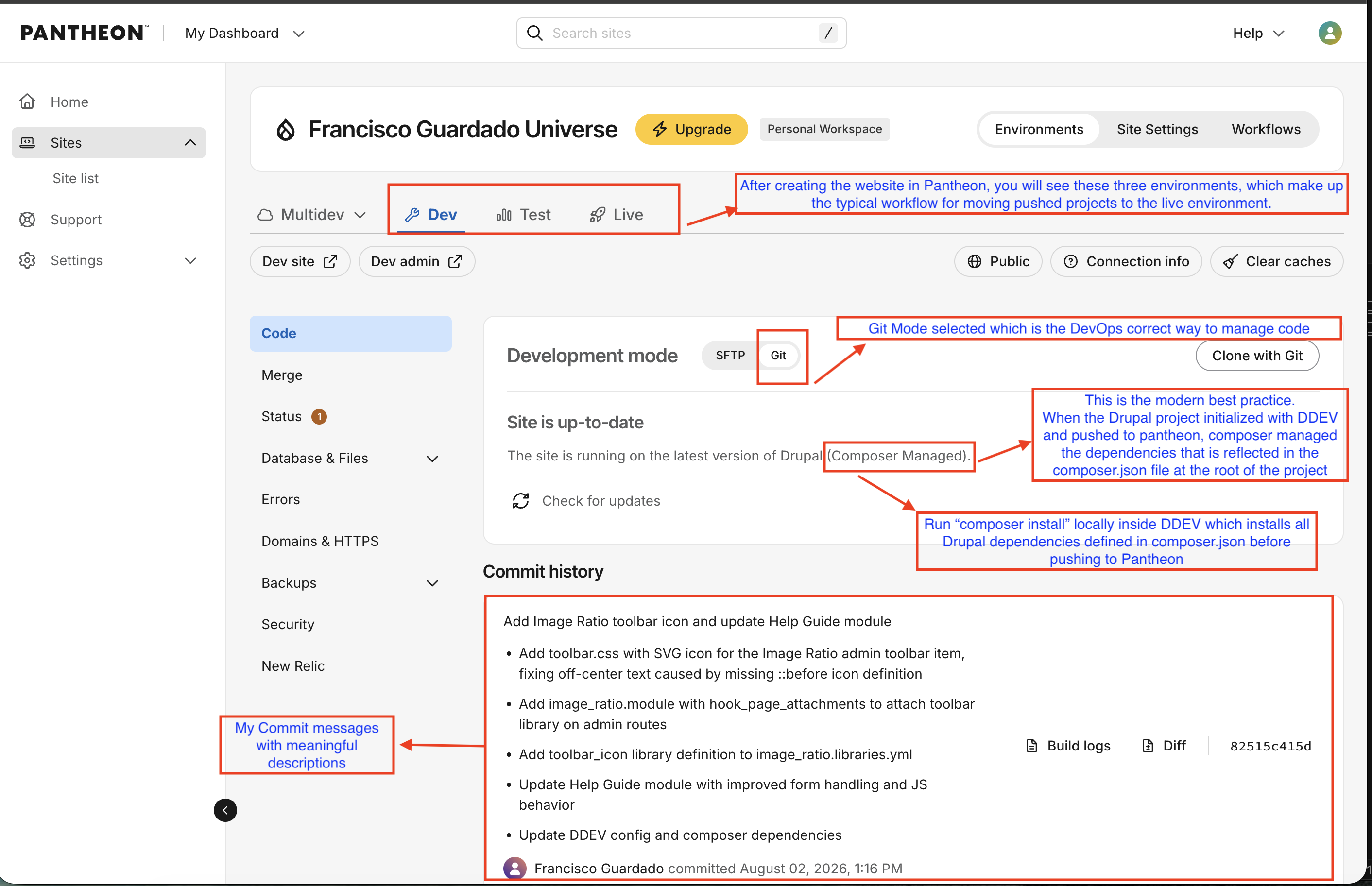
Dev / Test / Live:
Right after creating the website in Pantheon you will see Dev / Test / Live environments in the dashboard.
These 3 environments make up the workflow for moving pushed projects to the Live environment or Production as is known in other hosting sites.
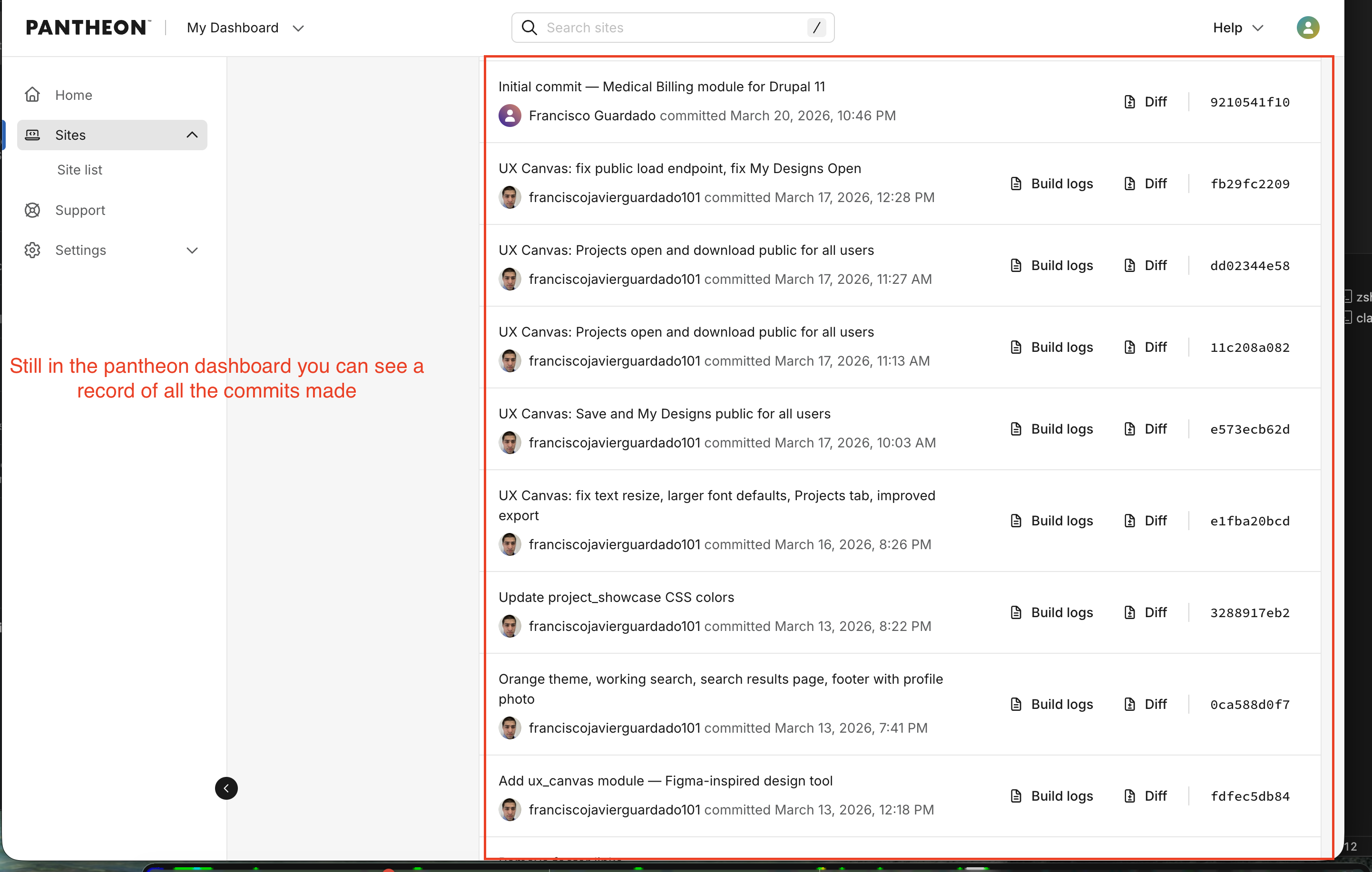
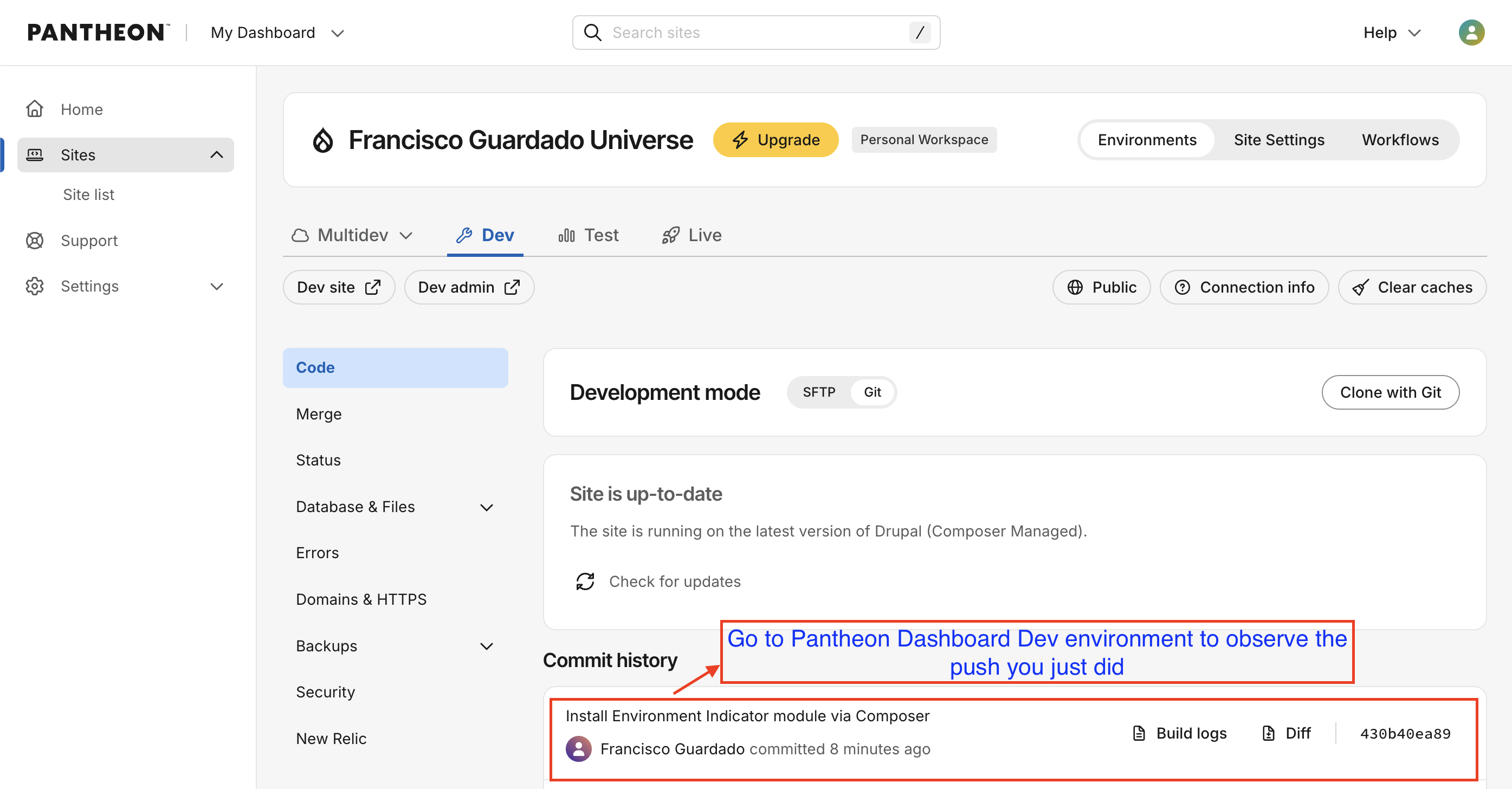
Still in the Pantheon dashboard you can see a record of all commits made.
Diff shows you a before and after comparison of the code for that specific commit which exactly which lines were added (green) and which were removed (red). It's like a highlighted change log at the code level, so you can see precisely what changed and why in any given deployment.
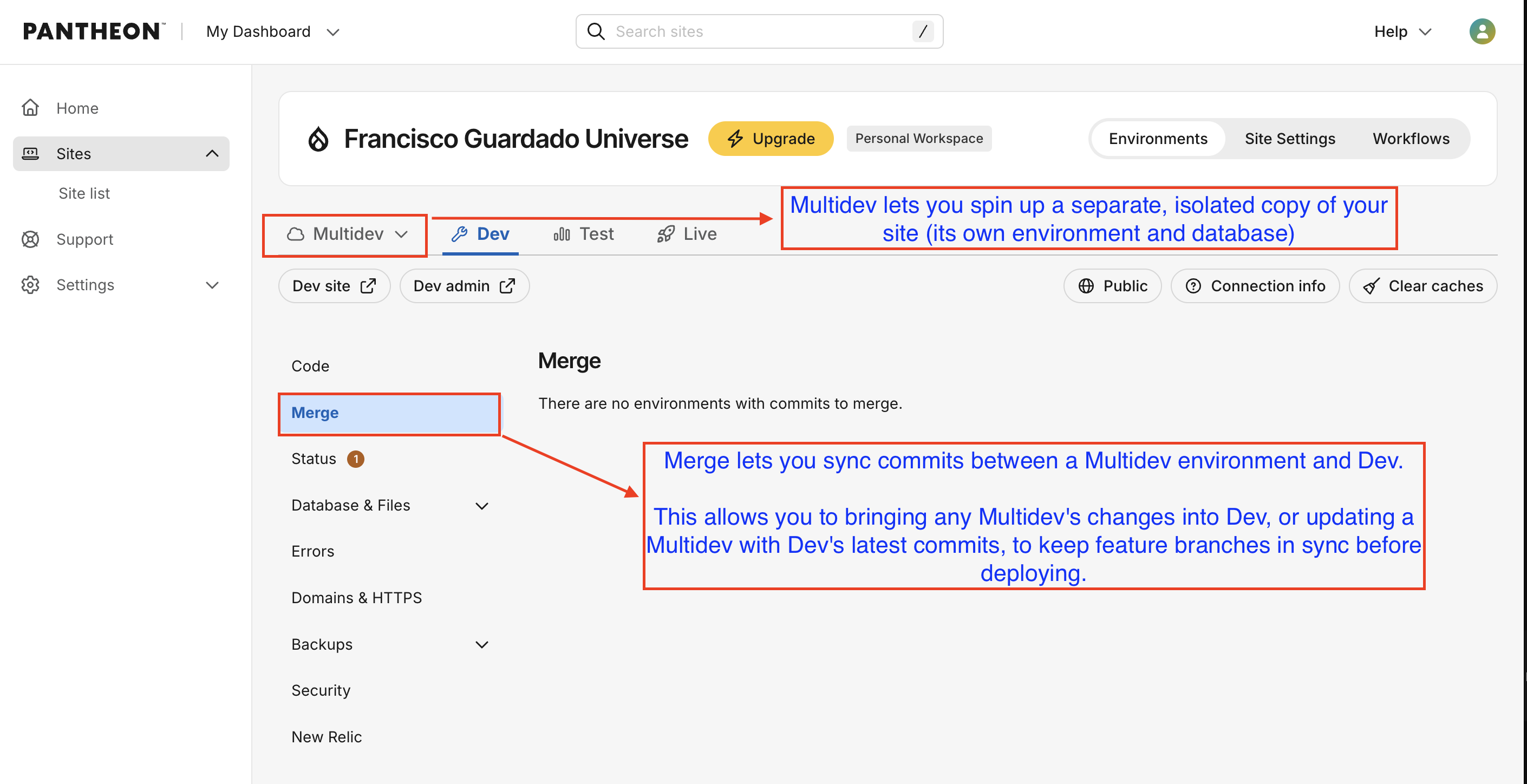
Thanks to Multidev you can work on a an isolated copy of your site with its own database. Think of it as a feature branch so you can work and test your projects without touching Dev, Test or Live.
A local environment cannot replicate a live server context with real database connection, server config, SSL, integrations that need a public URL like webhooks or payment gateways.
Main uses for Multidev:
Shareable URLs: A Multidev environment has its own live, public URL. You can send that link to a client, designer, or QA person to review the work in progress, something a local environment can't offer since it only lives on your machine.
Parallel work without collisions: If multiple developers are each building different features, each can have their own Multidev environment, so nobody's local setup, database, or uncommitted changes interfere with each other.
Production conditions: Since it runs on the same infrastructure as Dev, Test, and Live, you catch environment-specific bugs (PHP version issues, server config quirks) before they surprise you later, something local environments often do not replicate perfectly.
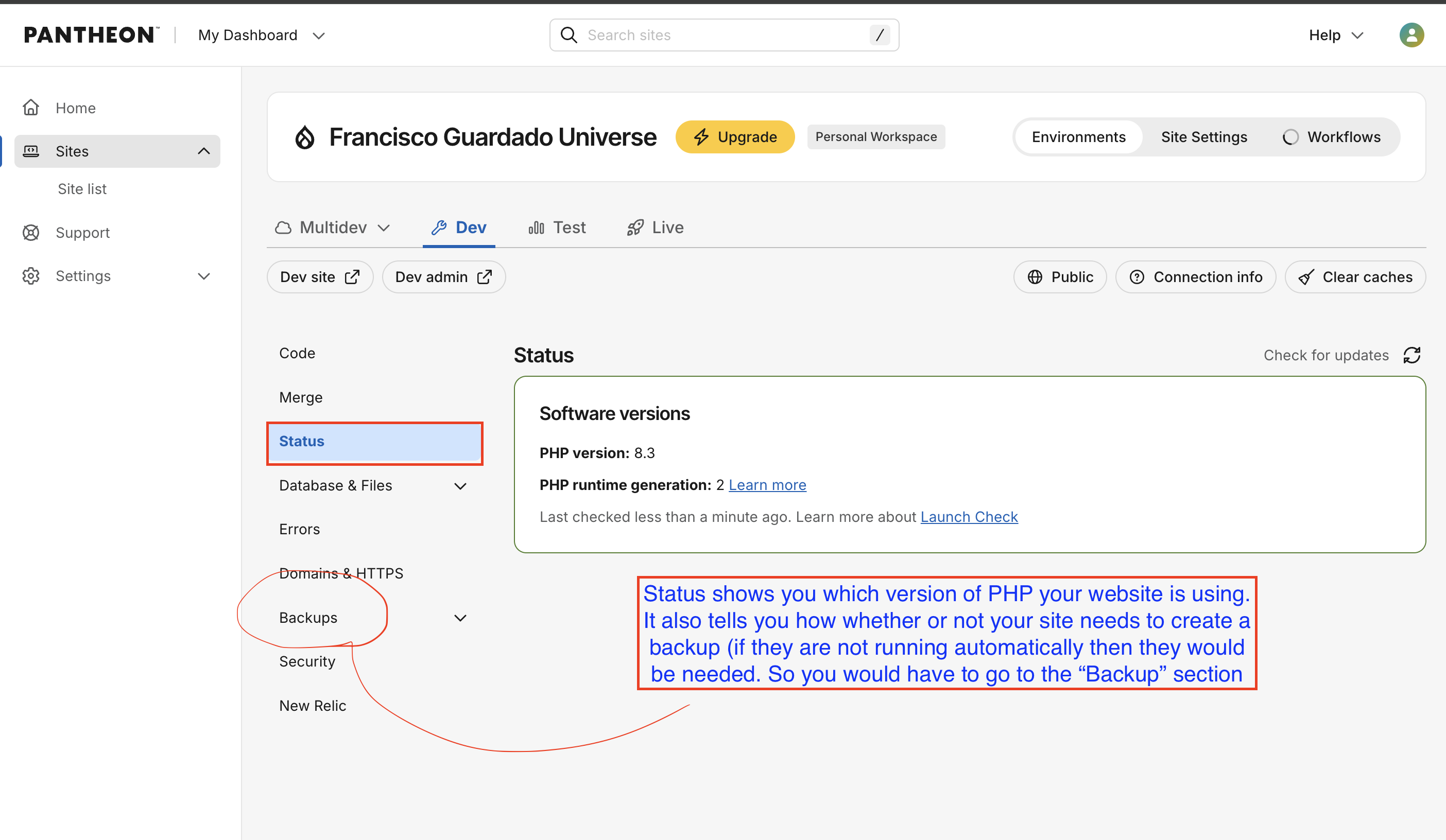
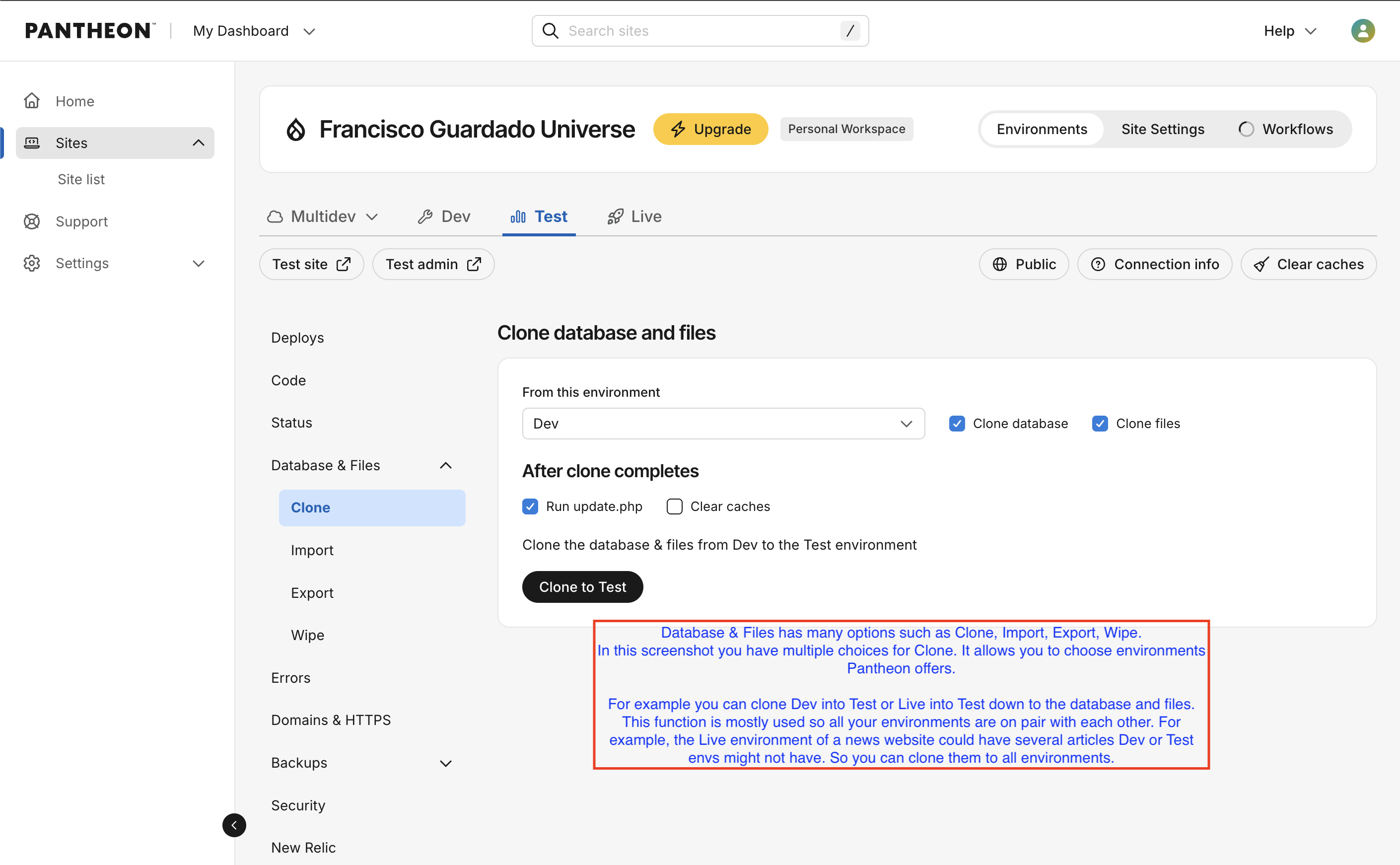
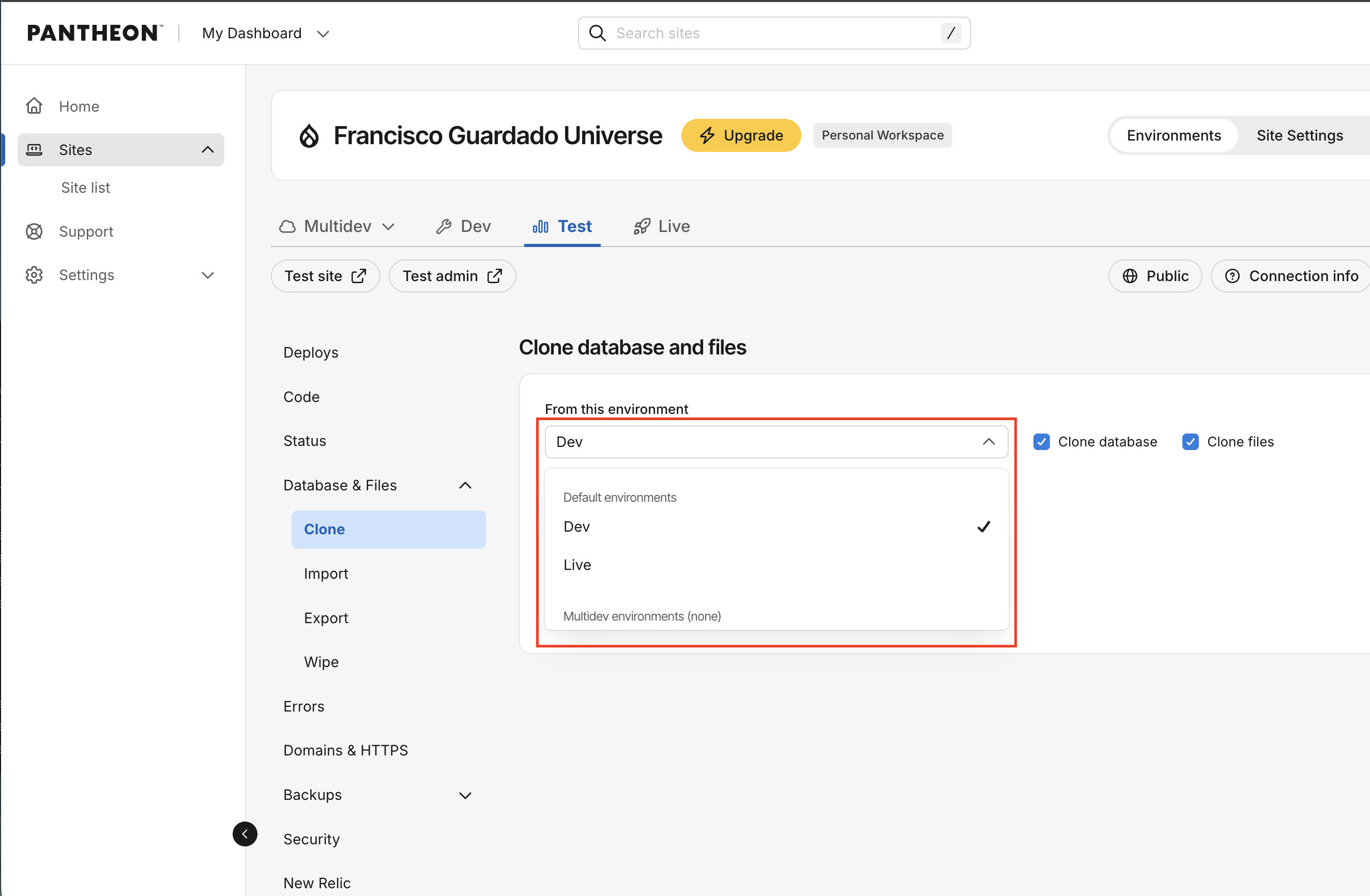
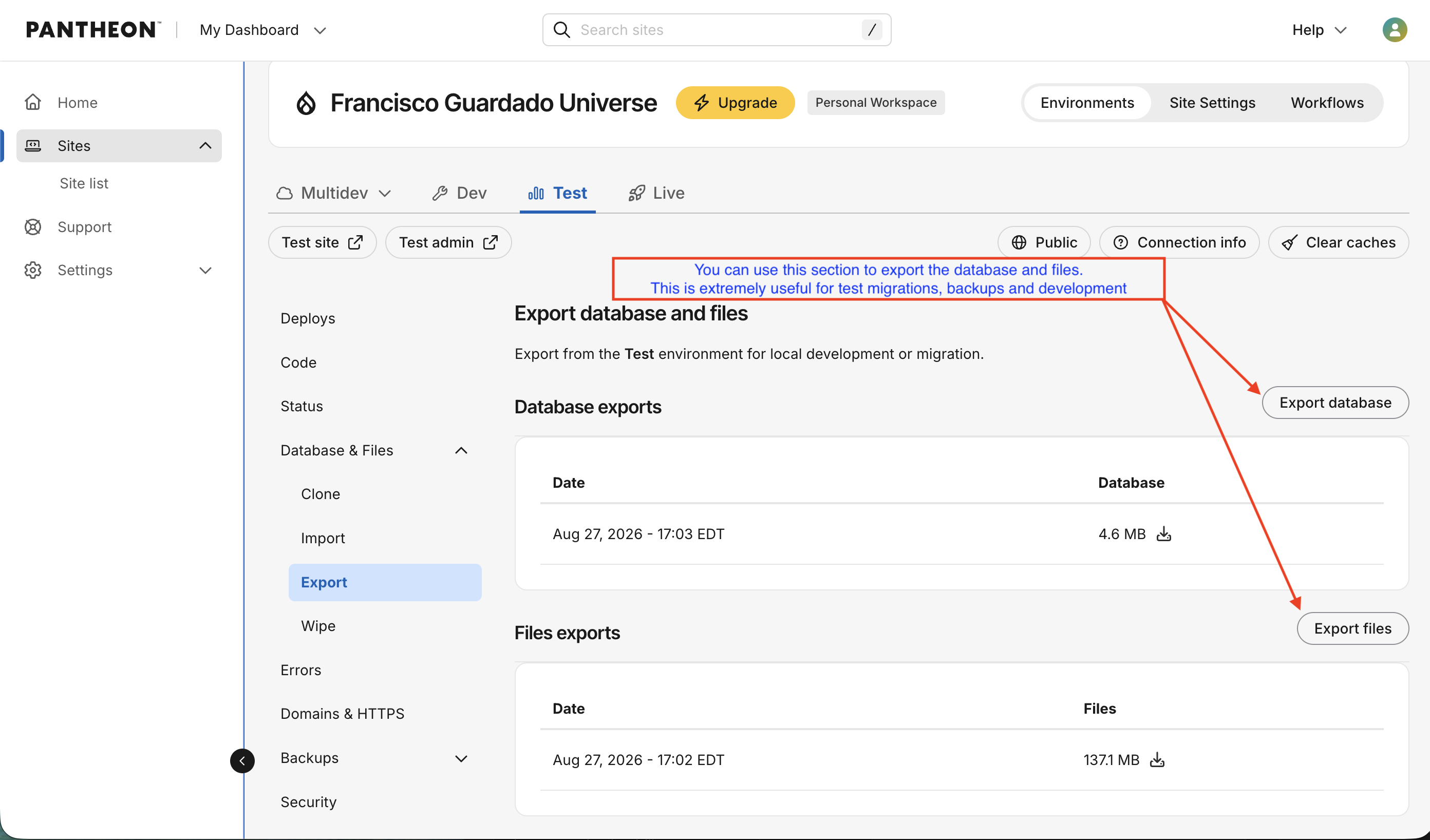
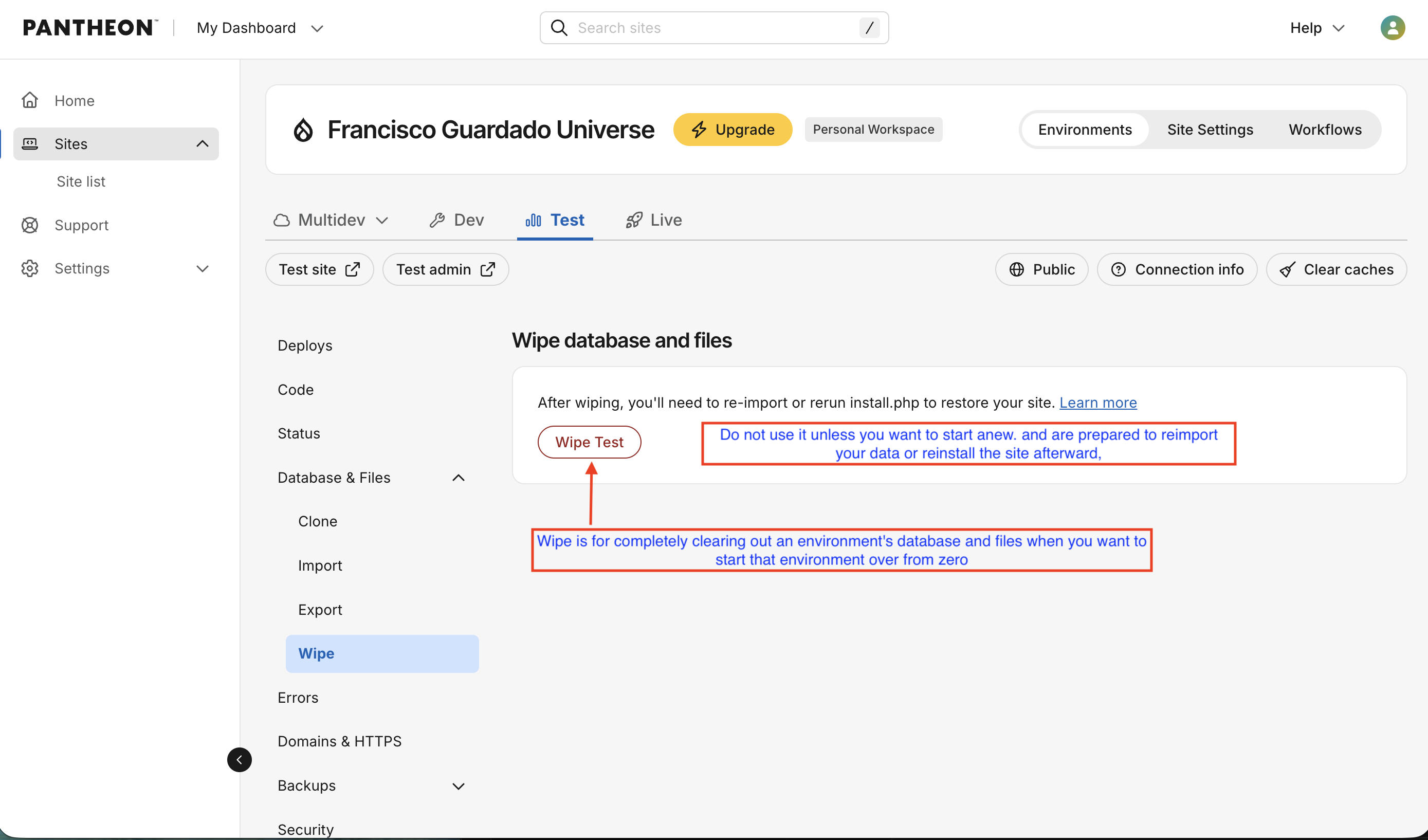
Notice that you are on Test. I purposefully showed the Test environment so we can see that we can clone Dev to Test, or Live to Test or even a Multidev environment to Test. And we can do that for other environments as well.

On the screenshot above, I show the command line "terminus auth:whoami"
-The output of this command line confirms that my email is authenticated which ties the terminal session to my Pantheon account.
-It also shows the real terminal state, including the Terminus version notice

Once authenticated via machine token, you have full CLI access to all your Pantheon environments:
you can pull databases and files, push code, run Drush commands remotely, trigger deployments, create backups, and manage environments without ever touching the dashboard.
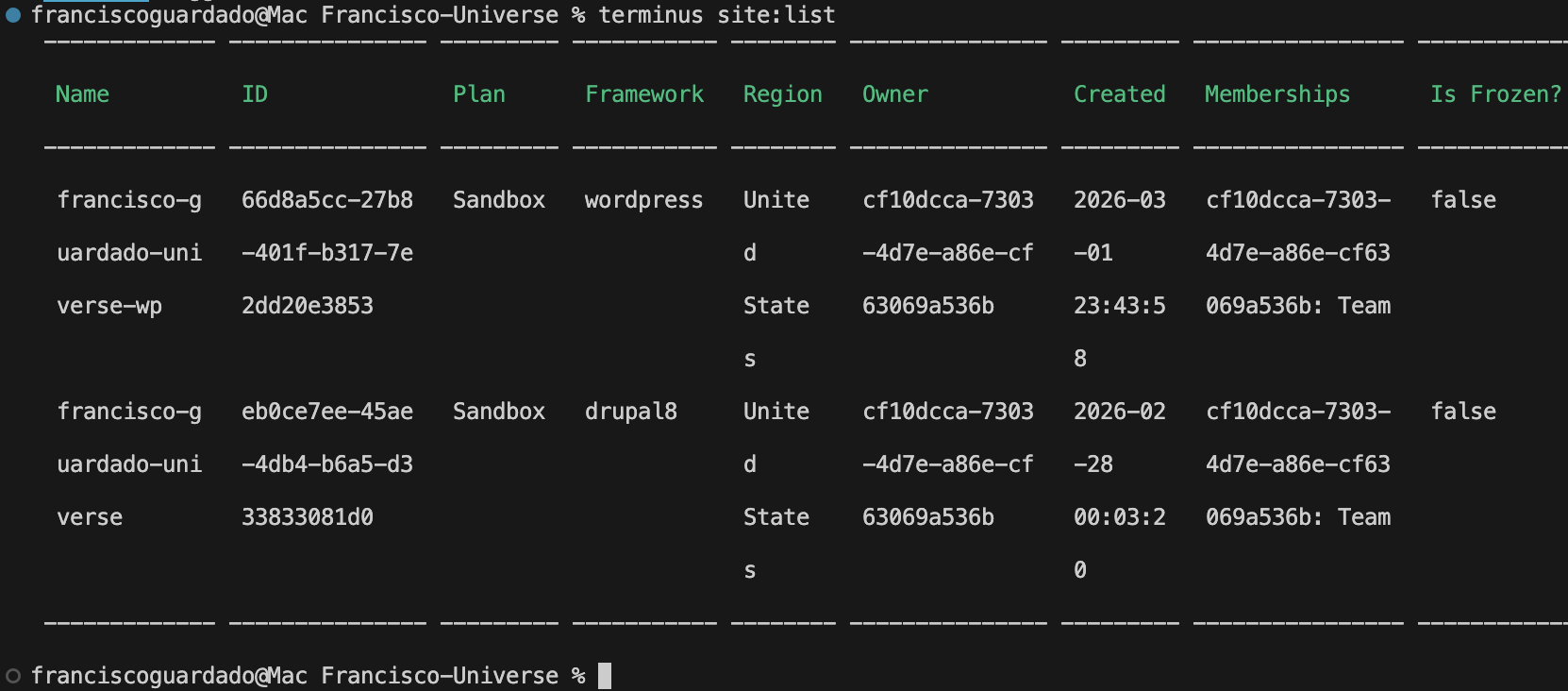
This is the starting point for any Terminus workflow. Make sure to run "terminus site:list" command line as I show on the screenshot above
terminus site:list shows a list of all Pantheon sites tied to your account
On the screesnhot above I show 2 sites in my Pantheon account (Drupal and WordPress). This proves I am able to manage multiple CMS platforms.
The command line displays site ID, framework, region, plan, and creation date.

The screenshot above shows the following:
- Lists all three Pantheon environments: Dev, Test, and Live which shows the full deployment pipeline
- Each environment has its own public URL which is fully isolated and independently accessible
- All environments show Connection Mode: git — code is managed through Git, not SFTP, which is the DevOps-correct approach
- This pipeline enforces the Dev → Test → Live promotion workflow — code never goes directly to production
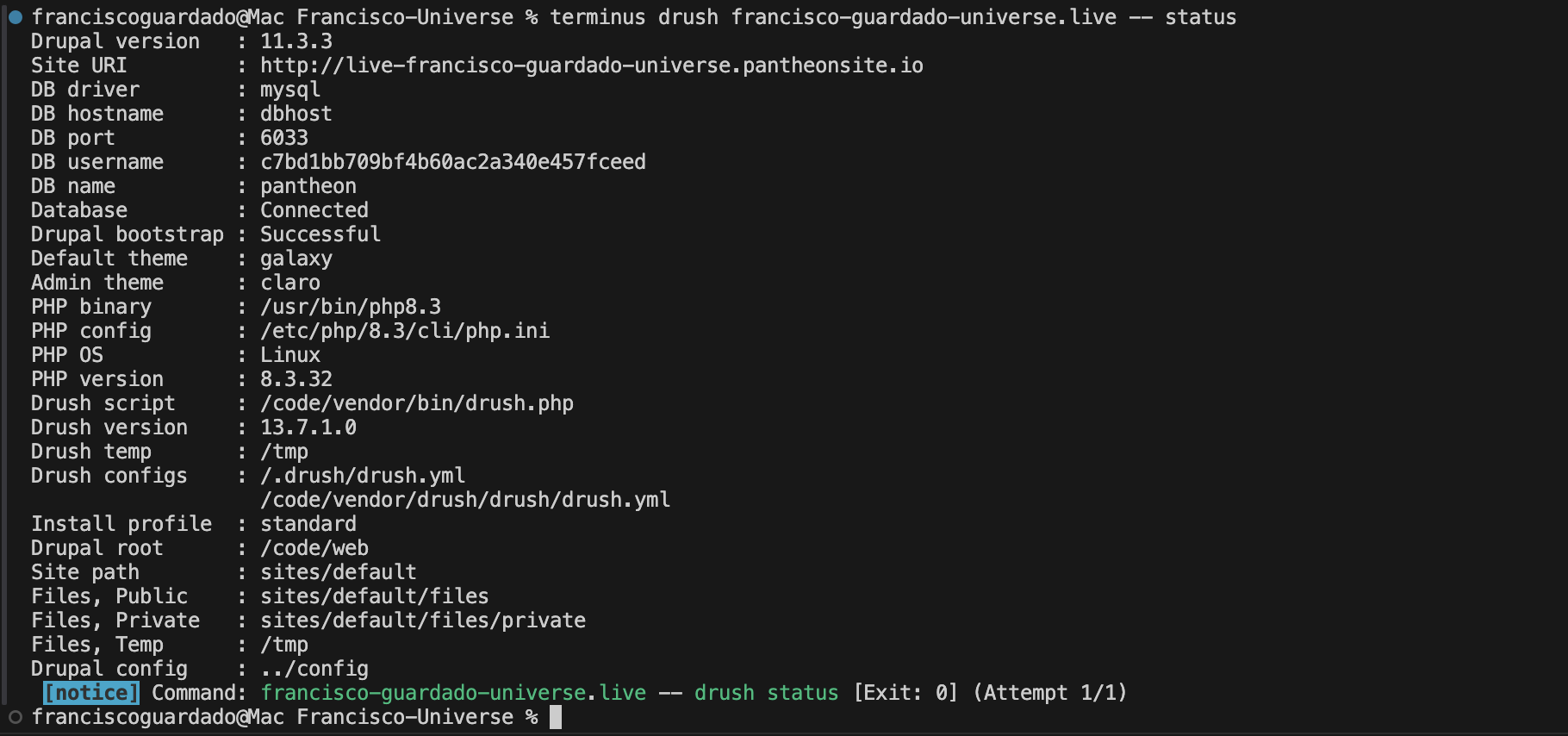
The screenshot above shows the output from "terminus drush francisco-guardado-universe.live -- status" command line.
This confirms:
- Confirms Drupal 11.3.3 is running on the live server
- Shows PHP 8.3 — current, modern version required for Drupal 11
- Database is Connected and Drupal bootstrap is Successful
- Drush 13.7.1 running on the server confirms Composer-managed dependencies are deployed correctly
- [Exit: 0] at the bottom means the remote command executed successfully with no errors.

The screenshot above shows the use of terminus drush francisco-guardado-universe.live -- cr
This command line shows "drush cr" (cache rebuild) remotely on the Live environment from the local terminal via Terminus
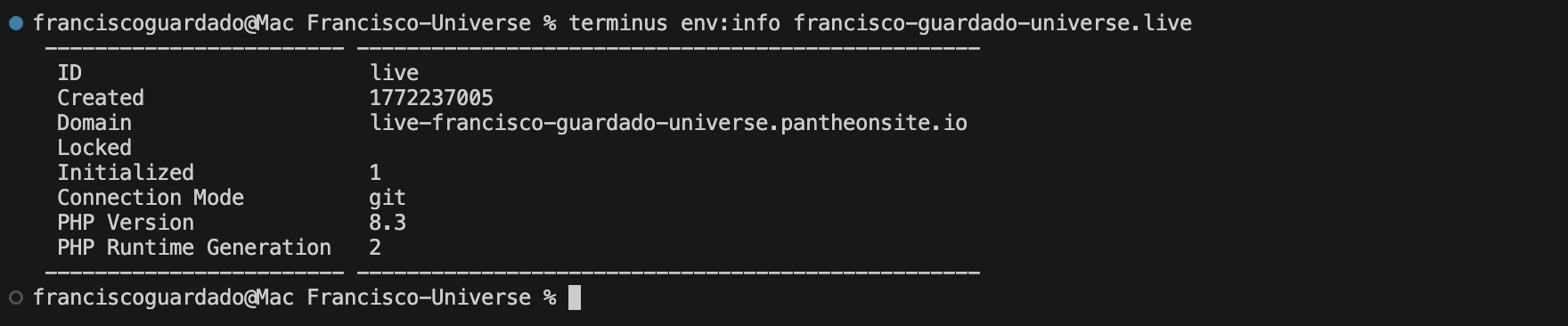
- The screenshot above shows detailed configuration of the Live environment
- It also shows connection Mode: git confirms production code is managed through Git exclusively
- PHP 8.3 confirmed on the live server
- It also shows the Live environment has its own public domain URL fully provisioned by Pantheon
- It shows "Initialized: 1" which confirms the environment is active and fully deployed

The command line terminus backup:create francisco-guardado-universe.live shows that you can create backups remotely from Local environment.
CI/CD PIPELINES PROCESS: install a contrib module, enable it, check on status, commit and push from local to dev in Pantheon.
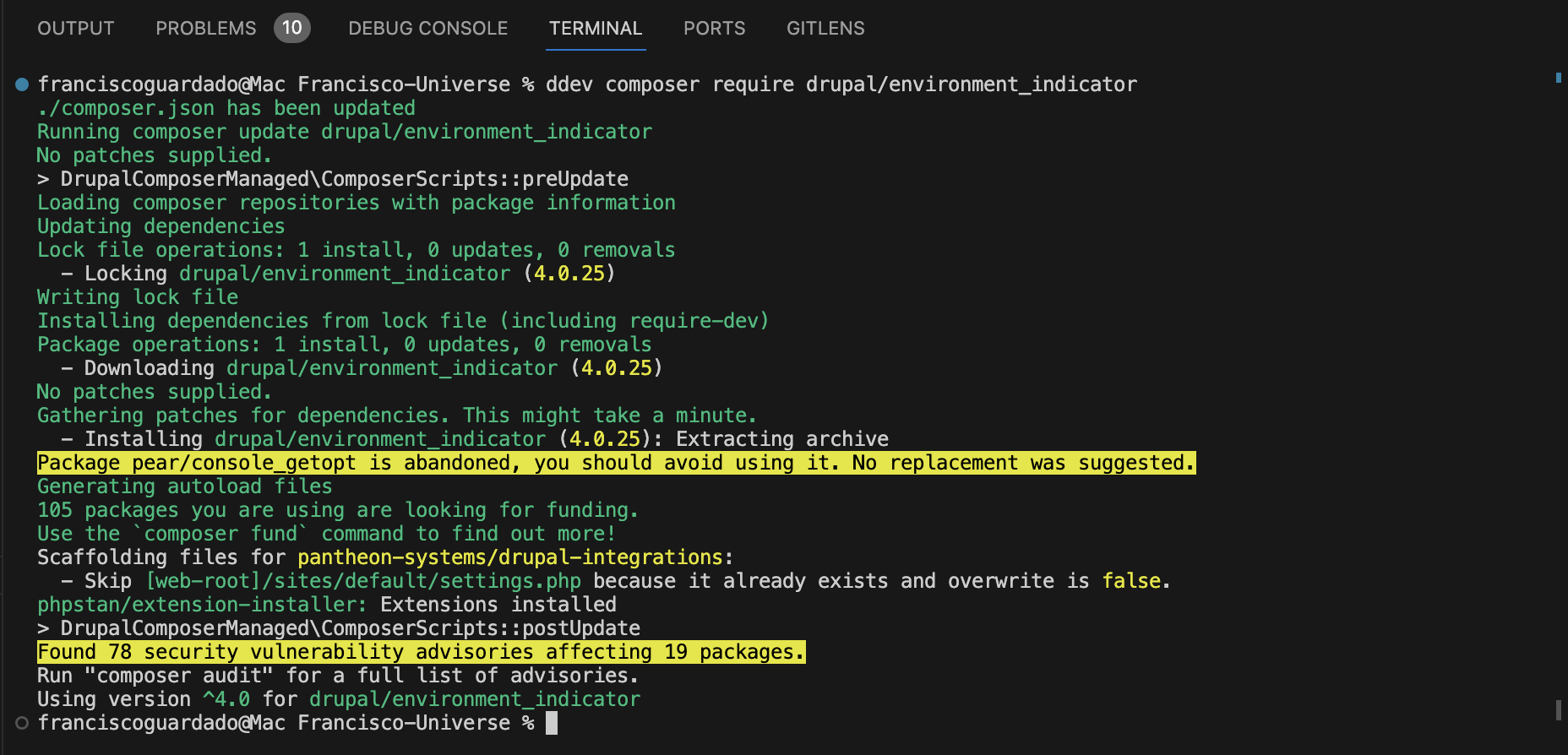
Environment Indicator contrib module adds a colored bar to the admin showing which environment you're on (Dev, Test, Live). Perfect to use for Government/enterprise Drupal teams.
The command line I used for this process was ddev composer require drupal/environment_indicator
The screenshot above of my terminal shows the contrib module downloads and installs via composer.
Another important fact to mention is that Composer automatically resolves the version (4.0.25) and updates both composer.json and composer.lock

The screenshot above shows the use of the command line ddev drush en environment_indicator -y
This command line enables the contrib module.

The outcome of the command line shows the contrib module has been enabled successfully in my local environment.
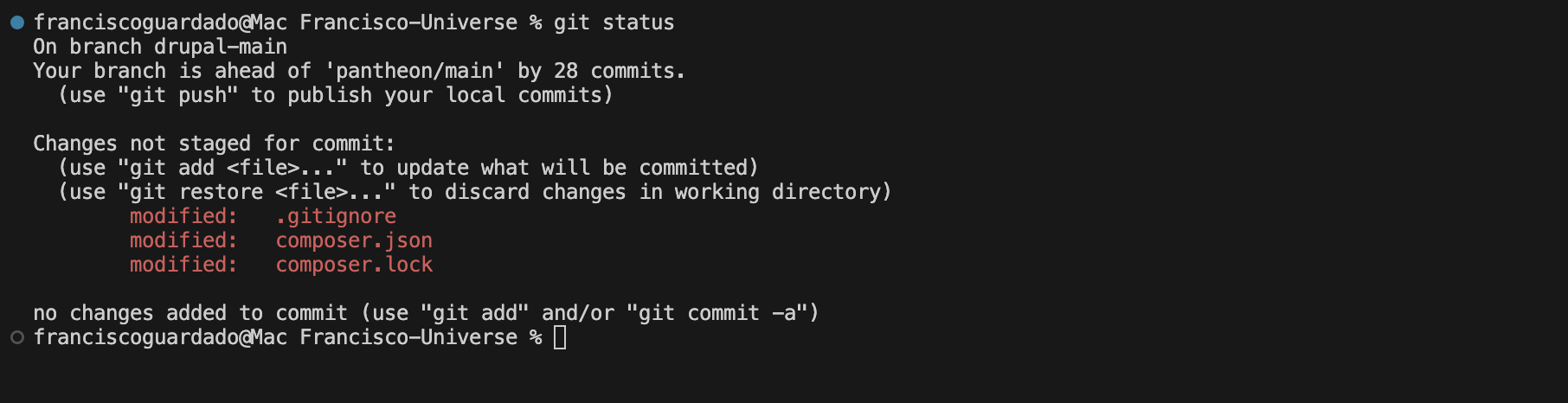
Git status command line shows the files that have been updated so we can commit and push to Dev. I advised to everyone to use this command line to keep track of the files created and updated before pushing.
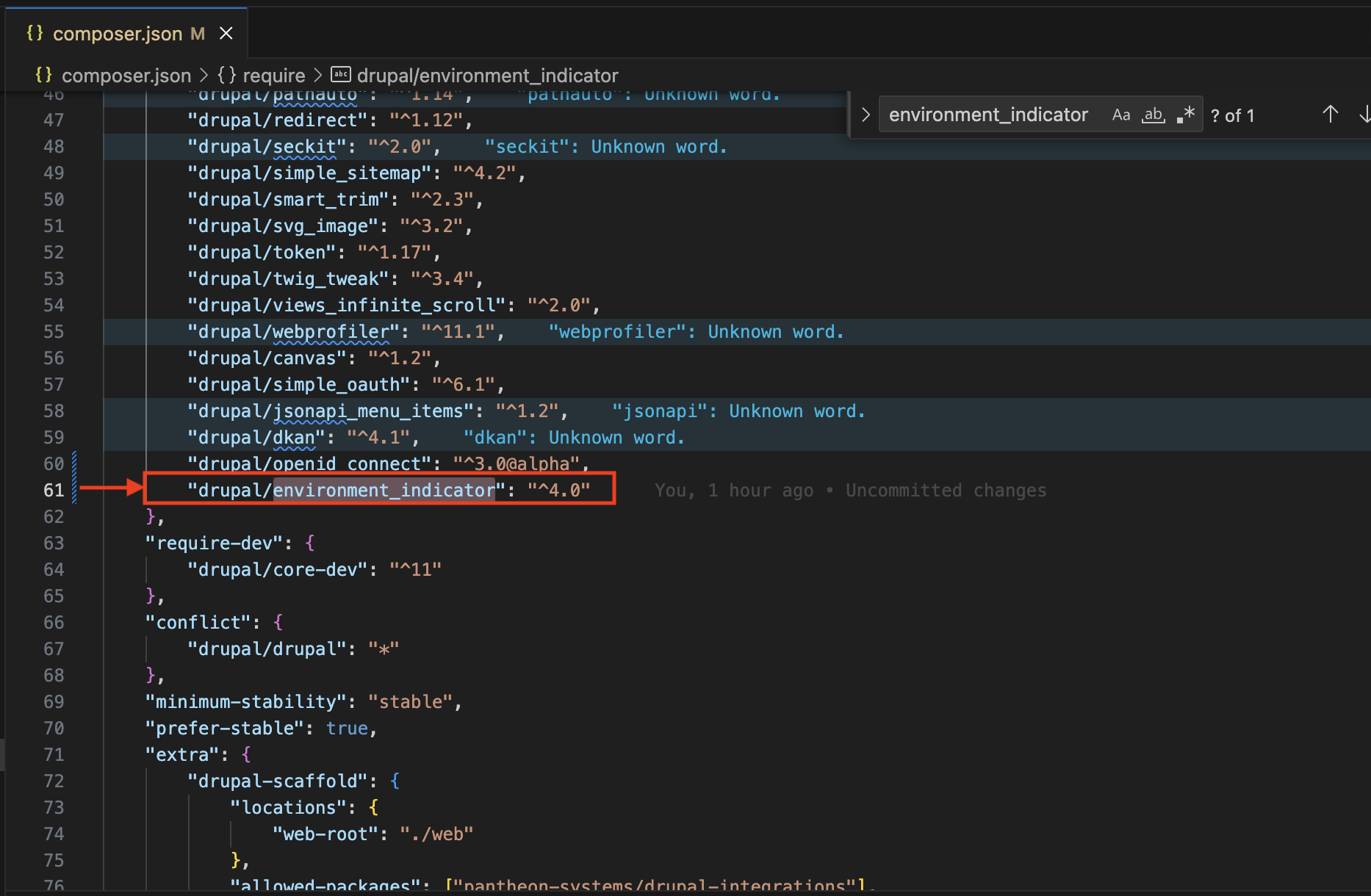
As seen on the screenshot above. In composer.json file, I went to composer.json file where I can observe "drupal/environment_indicator": "^4.0" has been added to composer.json.
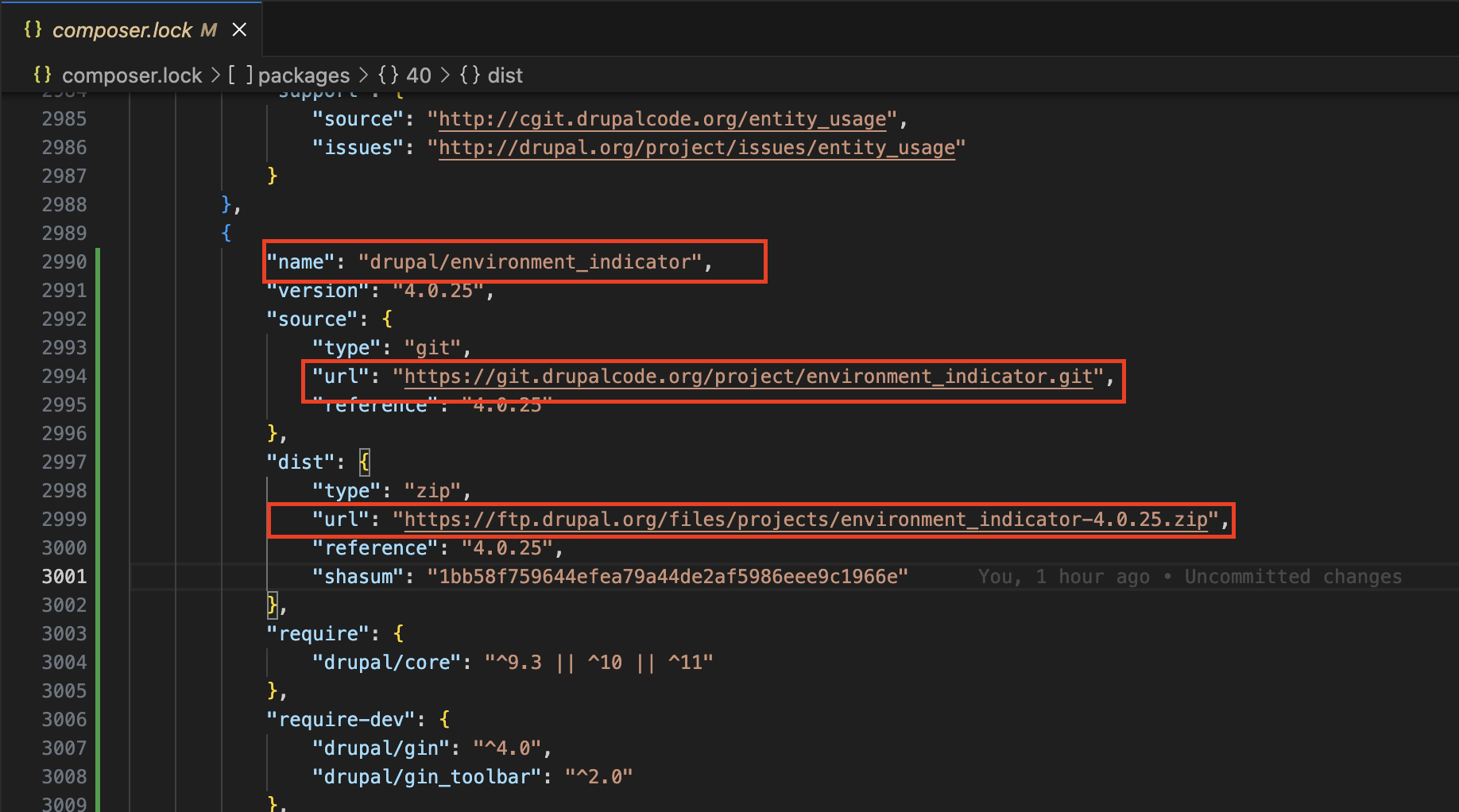
You can also go to composer.lock file as seen on the screenshot above where drupal/environment_indicator has been added properly.

Use the command line git add to properly start the process to commit the files you want to push.
This avoids accidentally push files that do not go with the current project you are working on for the website.

The command line git commit records the change to the local repository with a descriptive message
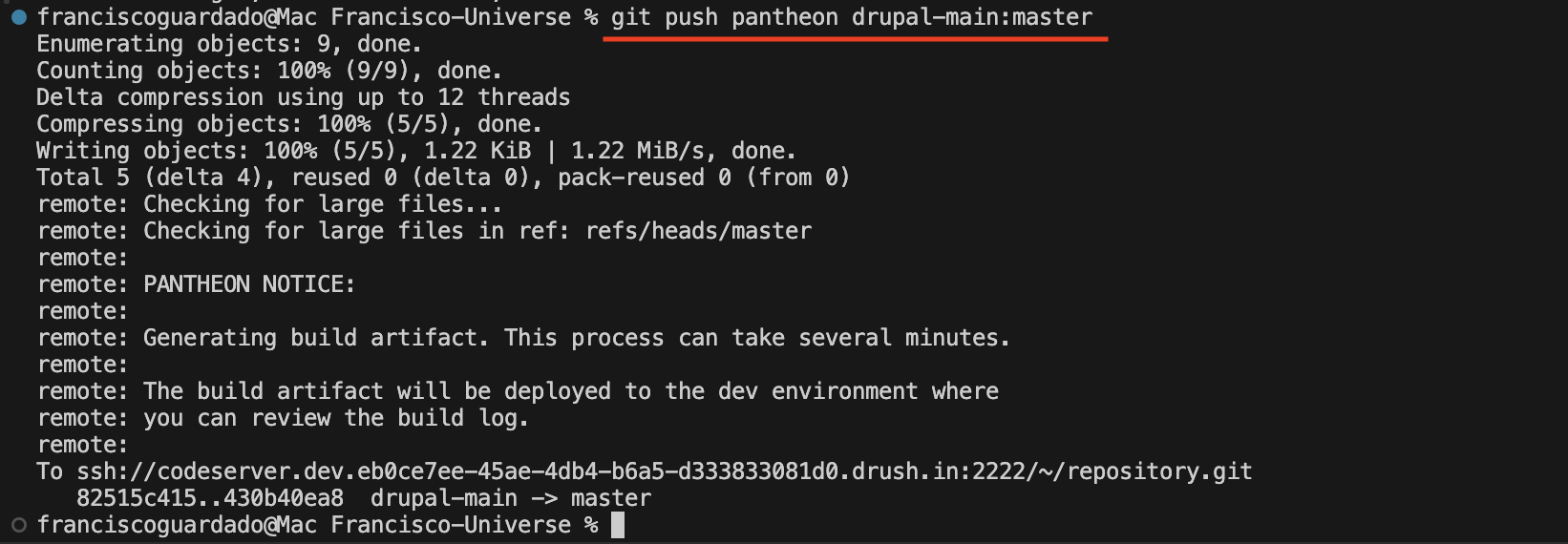
git push pantheon drupal-main:master pushes local code to Pantheon's Dev environment successfully.
Notice that 82515c415..430b40ea8 confirms the new commit was received by Pantheon

On my screenshot above shows the command lines to properly deploy to Test environment and clear caches.
terminus env:deploy francisco-guardado-universe.test --note="Deploy environment_indicator module to test"
terminus drush francisco-guardado-universe.test -- cr

On my screenshot above I also show the command lines and proper output of how to deploy to Live environment and clear its caches.
terminus env:deploy francisco-guardado-universe.live --note="Deploy environment_indicator module to live after QA approval"
terminus drush francisco-guardado-universe.live -- cr
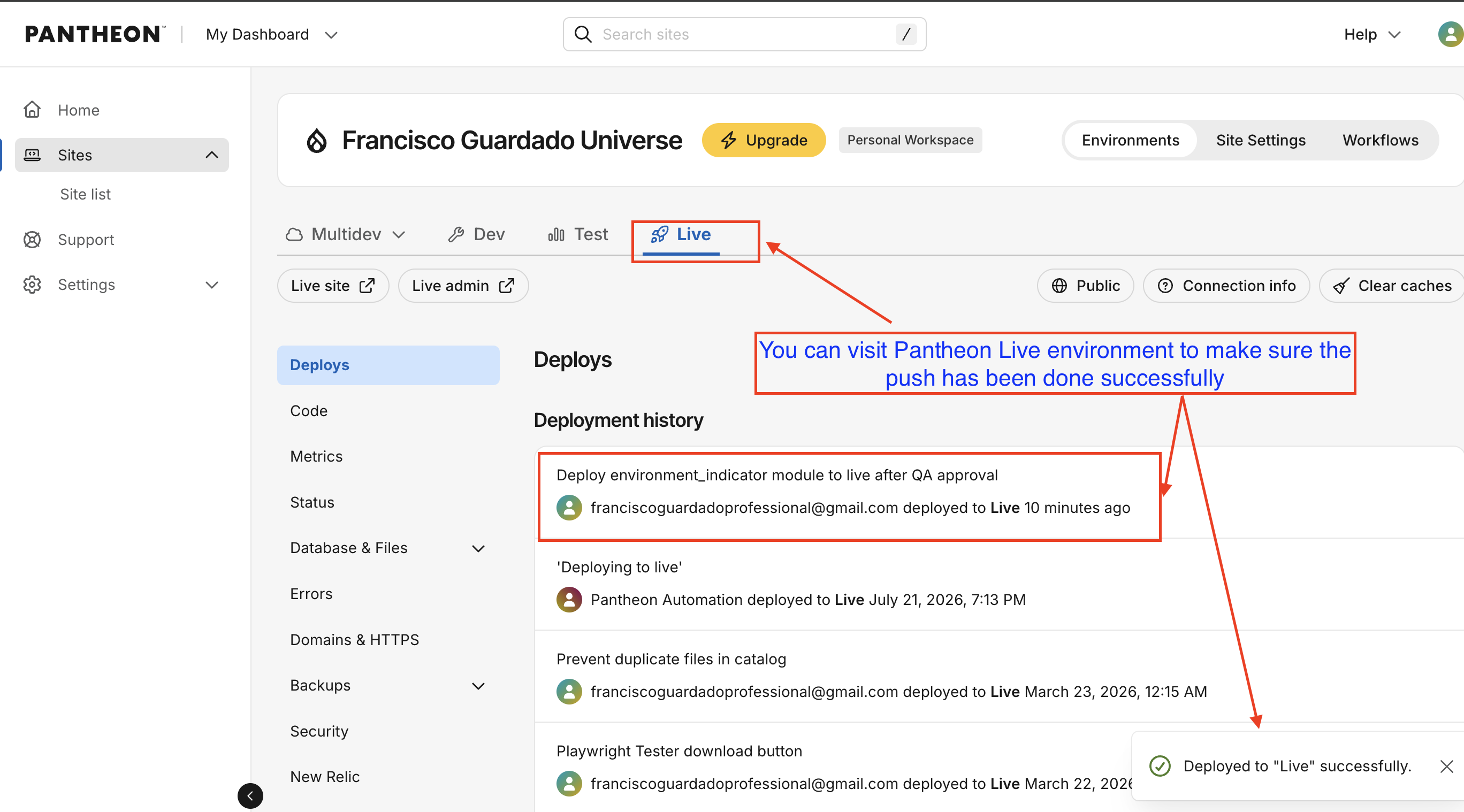
That is the full CI/CD pipeline documented end to end:
1. composer require installed module locally
2. drush en enabled locally
3. git status verified clean changes
4. git add staged intentionally
5. git commit committed with descriptive message
6. git push pantheon pushed to Dev, triggered Pantheon build
7. terminus env:deploy .test promoted to Test
8. drush cr on Test, cache rebuilt
9. terminus env:deploy .live promoted to Live after QA approval
10. drush cr on Live, cache rebuilt